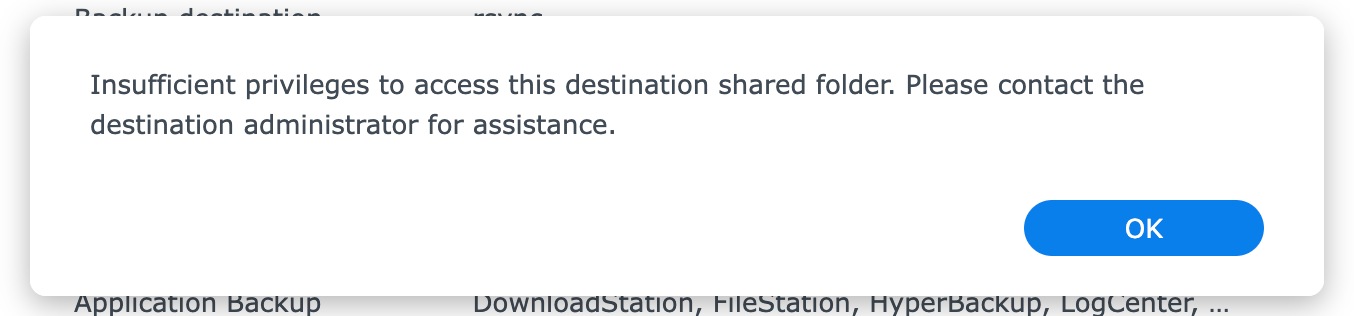
When configuring rsync backups on your Synology device, you must use the built-in admin account to ensure full privileges. Using any other account—even those with administrative privileges—may result in the error:
"Insufficient privileges to access this destination shared folder. Please contact the destination administrator for assistance."
This guide provides step-by-step instructions on how to enable and disable the built-in admin user before and after completing rsync backup configuration.
Prerequisites
- Access to your Synology NAS interface (DSM) using an account with administrative privileges.
- Network connectivity to your Synology device.
Steps to Enable the Admin User
- Log In to Your Synology NAS
Open a web browser and navigate to the DSM login page (e.g.,
https://<YourSynologyIP>:5001). Log in using an administrative user account. - Open the Control Panel
Click the Control Panel icon in the DSM interface.
- Go to User & Group
Under Control Panel, locate and click User & Group (or similar, depending on DSM version).
- Enable the Admin Account
- Select the admin user from the list.
- Click Edit or Action > Edit.
- Check the box to Enable this account, then click OK or Apply.
- Set a Strong Password
If prompted, set a strong password for the admin account.
- Proceed with rsync Configuration
Log in as the admin user and follow the separate rsync backup configuration guide.
Steps to Disable the Admin User
After completing the rsync backup configuration, it is highly recommended to disable the built-in admin account for security reasons.
- Log In with an Administrative User Account
Use any other administrative account to log in to DSM.
- Open the Control Panel
Click the Control Panel icon in the DSM interface.
- Navigate to User & Group
Go to the User & Group section.
- Disable the Admin Account
- Select the admin user from the list.
- Click Edit or Action > Edit.
- Uncheck the box labeled Enable this account.
- Click OK or Apply to save changes.
Next Steps
With the admin account disabled, your Synology NAS will be more secure. You can now monitor and manage your backups with confidence.
Was this article helpful?
That’s Great!
Thank you for your feedback
Sorry! We couldn't be helpful
Thank you for your feedback
Feedback sent
We appreciate your effort and will try to fix the article